
Auralia Tour
Introduction to Auralia
Auralia® makes teaching ear training easier with automatic grading, instant feedback, integrated reporting and sophisticated examination features.
Students love the fun and engaging exercises that cover all areas of ear training and allow them to progress at their own pace.
Designed for Education
- Excellent content & curriculum
- High school, college, university
- Quizzes, worksheets, exams
- Student tracking & grading
- Easily customizable
- Cost effective
- LMS integration
Student Practise
Auralia has 59 ear training topics, each with carefully sequenced levels that gradually introduce students to more difficult content. This approach allows you to use Auralia with beginners and advanced students, with each student learning at their own pace.
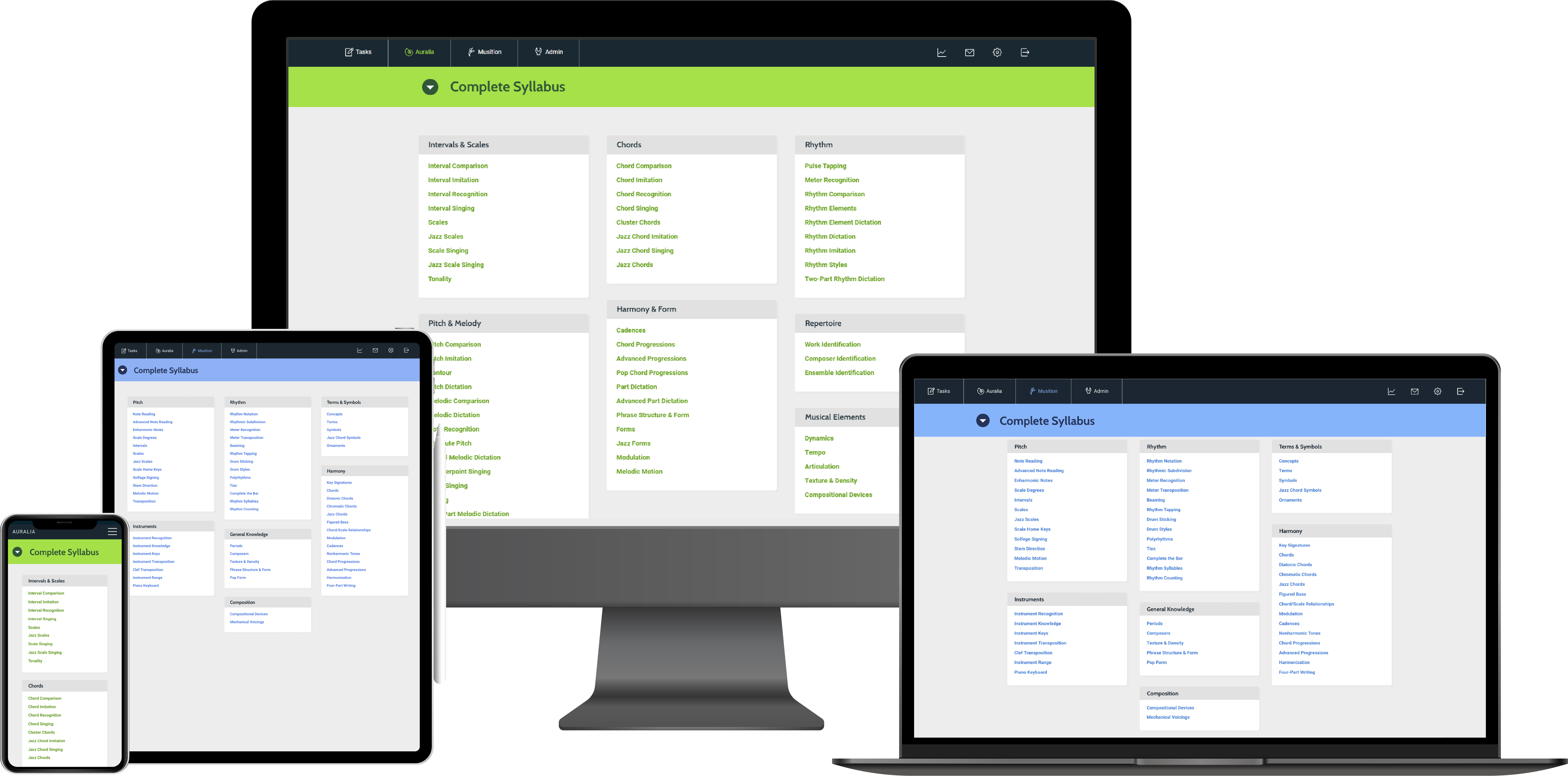
Levels and topics are grouped into syllabuses, which are mapped to curriculum. Teachers can very easily create their own syllabus, ensuring that students practice the most relevant content.
- Self paced learning
- High quality feedback
- Tapping, singing and notation entry
- Automatic grading
- Complete reporting
- Syllabus and topic customization
When a student answers incorrectly they always receive quality feedback, giving them the chance to review the question and their answer.
This will often include playback as well as notation and text explanations.
The way questions are answered varies from topic to topic. Some may ask to tap back a rhythm whilst others may simply require a multiple choice answer. Notation entry is widely used, and there are also Solfege, Piano and Guitar controllers available in many topics.


Quizzes, Worksheets & Exams
Tests are one of the most important features in Auralia. They allow teachers to assign sequences of questions; giving absolute control over the number and type of questions that students will attempt.
When integrated into your curriculum, tests rapidly become and invaluable part of your workflow.
- Weekly worksheets
- Entrance examinations
- Quizzes
- Formal assessments
When creating tests, questions may come from any syllabus and topic, or, directly from the library. Scores are stored separately and tests can be taken multiple times if required.
Tests have loads of features that allow them to be tailored to your exact requirements.
- Question banks
- Time limits
- Playback controls
- Timeslots - starting and ending dates
- Weighting and rounding of marks
- Multiple attempts and session resumption
- Question threading
- Automatic & manual grading, regrading
- LMS integration

Content & Customization
The library has thousands of questions for your students to practise, using quality audio recordings and notation excerpts. Import your own items, and use them to create your own questions that are relevant for your students studies.

Question creation is very flexible, with excellent control over how content is displayed and played back to the student.
- Notation entry – transcription & dictation
- Notation highlighting – notes, bars and parts
- Chord symbol entry – figured or contemporary
- Multiple choice – text, image, audio or notation answers
- Tapping – imitation, reading & tap along
- Free text - text based answers, essays & analysis
- Creative - harmony & composition
Notation
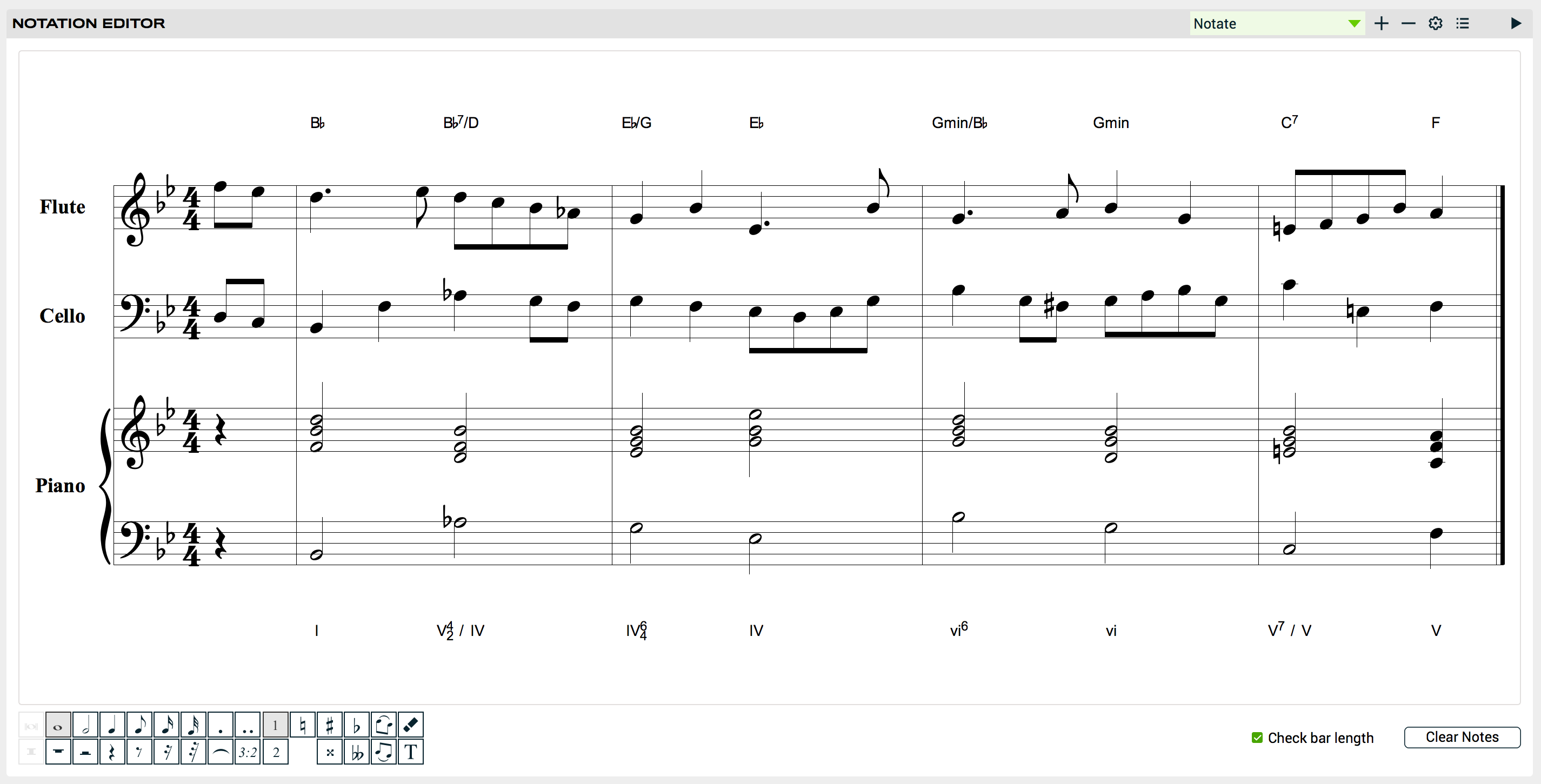
Auralia also features an integrated notation editor. Unlimited parts and bars, control over beaming and grouping, anacrusis support and ties allow you to create examples quickly and easily.
You can even import and export MusicXML, allowing you to reuse any existing notation that you may have.
Learning with Auralia
Each of the topics in Auralia has an accompanying Lessons module, where you can learn about the concepts that you will be practising. Lessons contain text, audio recordings and notation and are an invaluable electronic textbook both at home and in the classroom.


Courses
Courses are sequenced pathways that include questions and lessons. When setting questions in courses, the teacher can set thresholds that must be hit before a student can progress to the next stage.
Instructors generally use courses for longer learning activities, and are great for delivering curriculum relevant content.

Singing
Auralia has pitch recognition technology, allowing students to sing their answers in many of the topics. The microphone setup wizard helps students set their input levels, ensuring accurate assessment.
- Pitch matching
- Interval, chord and scale singing
- Sight singing
We also now allow students to hear back their singing after it’s assessed, an absolutely fantastic tool for student review!

Auralia in the Classroom
Using Auralia with your students has two key benefits. Students have unlimited ear training questions to practise, and, as the teacher, you save hours upon hours of preparation and grading time.
Student work is all recorded automatically, content can be customised to suit your curriculum, and you can very easily assess large numbers of students.
- Student scores and progress recorded
- Automatic grading and assessment
- Easy creation of worksheets, quizzes and tests
- Cloud connected for on and off campus use
- Any device - phones, tablets, computers
- LMS integration - sign on and gradebook support
Music to our ears

Jonathan Rice, Music Coordinator at St Aloysius
“We use Auralia and Musition to assist with exam preparation, to track students’ progress and set worksheets, and I’ve noticed a reduction in my marking load since we introduced these programs.”
Michael Martin, Music Teacher at Rugby School
“The students often use Auralia and Musition to prepare for exams, especially theory exams. Students are more engaged and this, in turn, leads to better results. I’ve noticed real improvement in students’ results, especially intervals and chords.”
Tim de Jong, Head of Music Department at Walford Anglican School for Girls
“I have used the software to set worksheets and track students’ progress. I think that there has been an improvement in students’ test result and their musicianship with Auralia and Musition.”